Toast: Nested Modifier Settings with Chowly
This article is designed for those using the Toast POS system, and explains how to create nested modifier sets that are compatible with your Chowly integration.
What are Nested Modifiers?
Nested Modifiers are a set of modifiers within a modifier group. The best metaphor is a Russian nesting doll. Open the doll, and there’s another one nested inside. Open that second doll, and there’s a third one, etc..
Nested modifiers are the same concept, but for food. Start with a menu item. The options given to customers within that item are modifiers, and then options given to customers about a single modifier are the nested modifiers.
Nested Modifier Rules for Toast + Chowly
In the example image below, the yellow highlight signifies that a customer has ordered a menu item called “Taco Dinner” instead of Pozole or a Torta.
When given a choice of meat, they selected beef instead of chicken. When asked what type of beef, they chose steak instead of ground beef.
When given a choice of how they would their steak cooked, they selected well done instead of rare.
When given a choice of tortilla, they chose corn instead of flour. When asked what type of corn tortilla, they chose soft shell instead of hard shell.
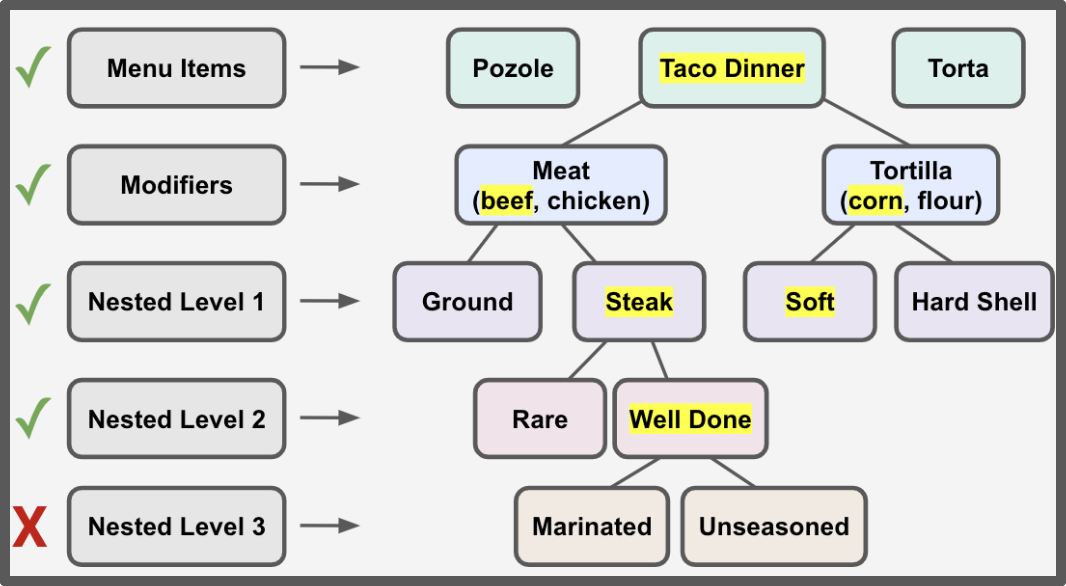
(1) Chowly only supports two layers of nested modifier sets.
The example menu above has three levels of nested modifiers. After selecting “beef,” the first nested mod option is for “ground beef” or “steak.” The second nested mod option is for "rare" or "well done". The restaurant has a third level (have their steak "marinated" or "unseasoned), which is not supported by Chowly.
Note: Toast allows their users to have unlimited levels of nested modifier sets. Menu items with more than two layers of nested modifiers sets will be skipped in the menu publish, and an alert will be sent to the #nested-modifier-alerts Slack channel.
(2) Unlimited number of modifier groups and nested modifier groups supported.
The example menu item has two modifier groups: Meat and Tortilla. If the restaurant wanted to add a third modifier group for “cheese” type, or a fourth called “toppings,” or another ten different modifier groups, that is supported by the Chowly integration.
The same is true for nested modifier groups. The modifier “beef” has one nested modifier set that includes “ground beef” or “steak.” The second modifier, tortilla type, has another nested modifier set offering the choice between “soft” shell or “hard” shell. Restaurants could also have another nested modifier set under “chicken” that offers grilled chicken, chicken mole, or chicken tinga. That would be fine because the Toast + Chowly integration supports an unlimited number of modifiers and modifier sets within the permitted modifier levels.
(3) You CANNOT have default nested modifiers.
Default nested modifiers are nested modifier options that come preselected for customers. These are unable to be supported on your third party ordering channel menus.
Disclaimer! Not All Third Party Platforms Support Nesting
While most third party ordering platforms do support nested modifiers, not all of them do. Please check to make sure that all of the third party ordering channels you're connected with support nested modifiers before creating them.
Platforms that can currently support nested modifiers are Doordash, Grubhub, Uber Eats, and Chowly Online Ordering.
If using a third party platform that does not support nested modifiers, you will need to "flatten" them. This means somehow working the nested layer back up into the normal modifier group. For example: After ordering the taco dinner, the nested modifiers for beef ("ground beef" or "steak") would need to be regular modifier options (i.e. the meat choices are "chicken," "ground beef," or "steak" instead of just chicken or beef with nested beef options).
Adding or Editing Nested Modifiers on Toast
(1) From the Toast dashboard homepage, select the “Menus” button from the left side navigation bar.
(2) From the Menus page, select “Edit menus” in the Menu Management section.
(3) Click whichever menu needs item(s) with nested modifiers.
(4) Scroll down to the Groups section, and click the group with item(s) needing nested modifiers.
(5) In the Group page, click the select the item that needs nested modifiers.
(6) From the Item page, scroll down to the Modifiers Groups. Click the “+ Add” to add a new modifier group, or click the name of an existing modifier group to make changes.
(7) From the Modifier Group page, scroll down to the Modifiers section. Click the “+ Add” button and then the blue “Save” button if adding a new modifier. Click the name of an existing modifier to edit.
(8) From the Modifier page, click the “Edit Item” button next to the modifier that needs new or edited nested modifiers.
(9) Scroll down to another section called Modifier Groups, which is actually a Nested Modifier Group. Click the blue “+ Add” button to add a nested modifier group, or click on the name of an existing nested modifier group to make changes.
(10) From the Nested Modifier Groups page, scroll down to another section called Modifiers, which is actually where the Nested Modifiers live. Click the blue “+ Add” button to add a nested modifier, or click on the name of an existing nested modifier to make changes.
(11) Click the blue “Save” button when finished.