Toast: Modifier Settings with Chowly
This article explains how to add and edit modifiers to menu items in a way that is compatible with Chowly's integration to your third party online menus.
Modifier Group Settings
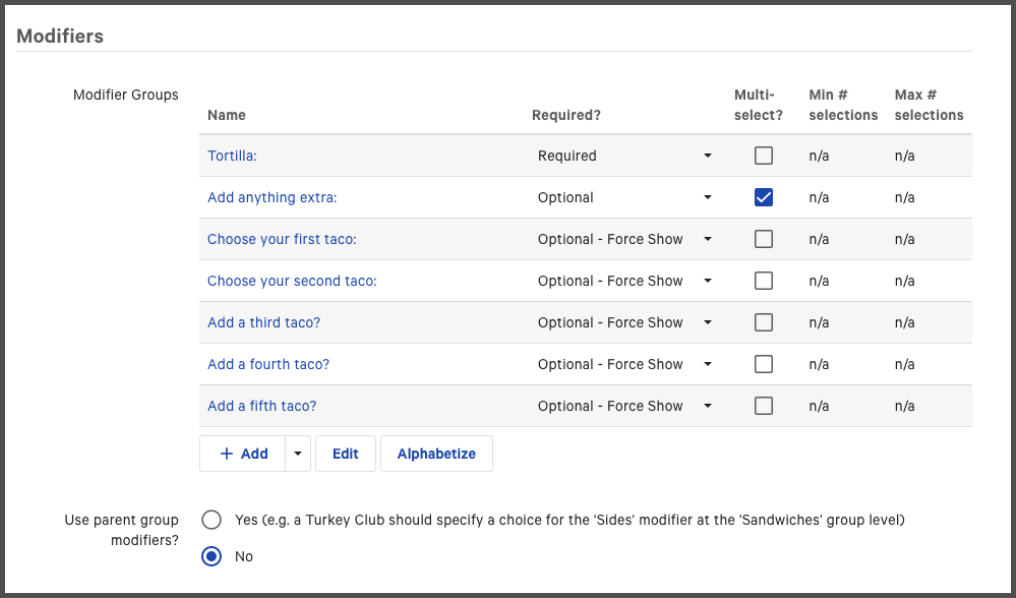
Modifiers Groups appear online in the same order shown in Toast. Click the "Alphabetize" button to put groups in alphabetical order. Click the "Edit" button to drag and drop groups into your preferred order.
"Use parent group modifiers?" allows assigning mods at the menu group level or the menu item level. The example image above has "No" selected, meaning Chowly will pull each of the item's unique modifiers. If "Yes" was selected, Chowly would put the group-wide modifier sets under every single item in the group. Even if different items had their own unique modifiers, selecting "Yes" will override them with group-wide modifiers.
Modifier Groups can be "Required" or "Optional." If a modifier group is set as "Required," Chowly will not let your customers place an order until the min/max number of require modifiers is met. If a modifier group is set as "Optional," Chowly will allow your customers to place orders without selecting any modifiers (or reaching the full maximum mods if applicable). Chowly will read "Optional - Force Show" the same way we read "Optional." If "Optional - Force Read" is selected, Chowly will allow your customers to place orders without selecting any modifiers.
"Multi-Select?" is pulled by Chowly. This Toast feature allows a restaurant's customers to order more than one modifier within a single group.
"Min # Selections" and "Max # Selections" Columns: These columns only display the minimum and maximum number of modifiers that can be selected for the group. Chowly does read these settings, but you must click into the modifier group and scroll down to the "Properties" section to change minimums and maximums.
Modifier Settings
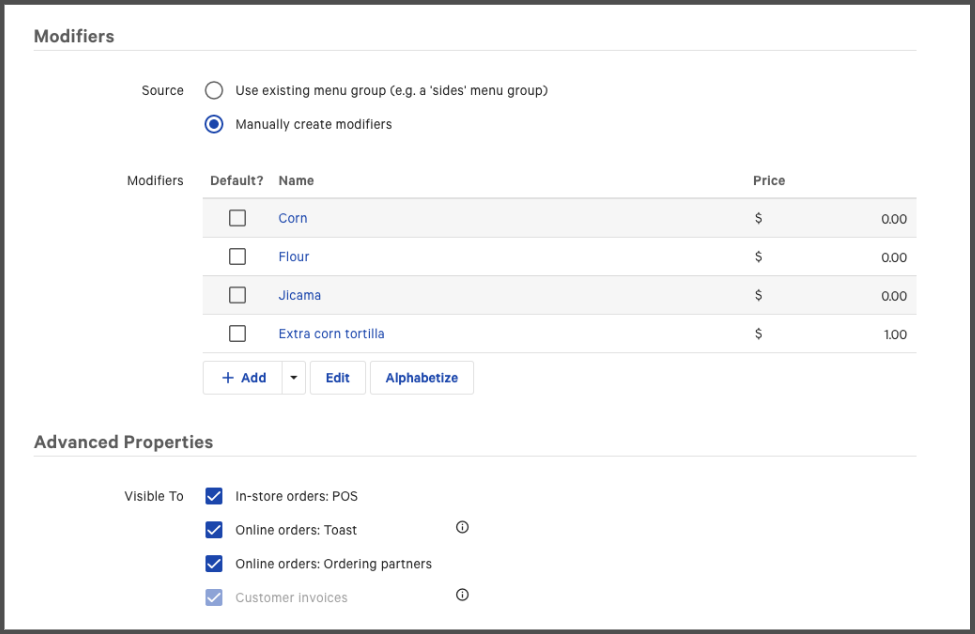
Modifiers appear online in the same order shown in Toast. Click the "Alphabetize" button to put modifiers in alphabetical order. Click the "Edit" button to drag and drop modifiers into your preferred order.
Chowly reads "Source" settings. If "Use existing menu group" is selected, restaurants can apply a different modifier group to this item. If "Manually create modifiers" is selected, restaurants can create unique individual modifiers for this modifier group.
Visibility Settings: Visibility settings work the same for modifiers as they do items and groups. During your onboarding process with Chowly, you asked Chowly to set our visibility to "All" or "Ordering Partners." If our visibility is set to "All," then we pull every single modifier in connected menus regardless of how you set your "Visible To" settings. If our visibility is set to "Ordering Partners," we will not pull modifiers unless "Online orders: Ordering partners" is selected in Toast.