Square: Setting Modifier Limits (Min / Max Settings)
This article describes the modifier capabilities in Square that do not align with Chowly, and how to avoid modifier-related errors.
Common Modifier Limits
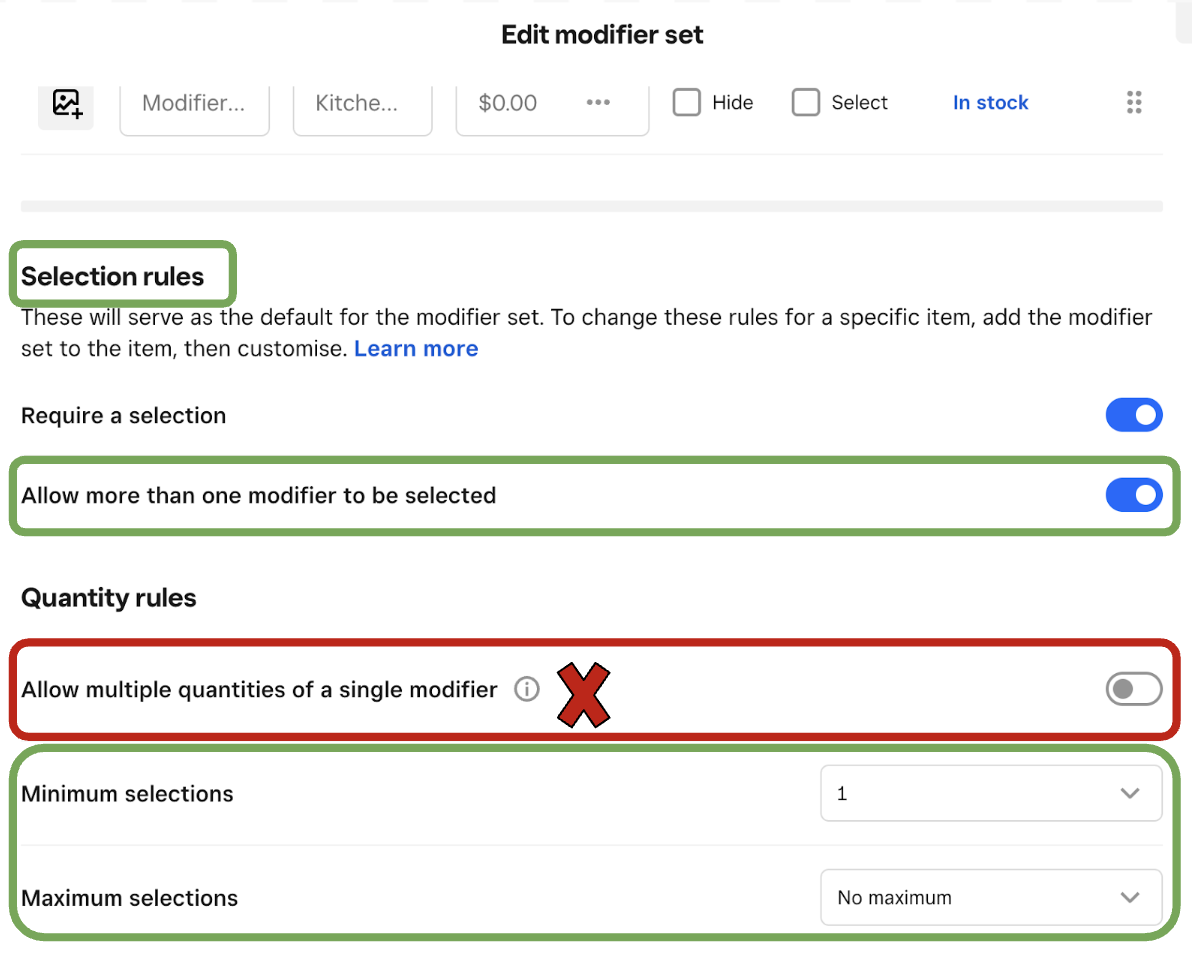
Square Modifier Selection Rules
- 1 min, 1 max - Require a selection toggle ON, Allow more than one modifier to be selected toggle OFF
- No min - Require a selection toggle OFF
- No maximum or maximum over 1 - Allow more than one modifier to be selected toggle OFF. This allows a number to placed for the amount of needed selections
Modifier Selection Rules
Modifier selection rules are created within the item settings, not the modifier group settings themselves.
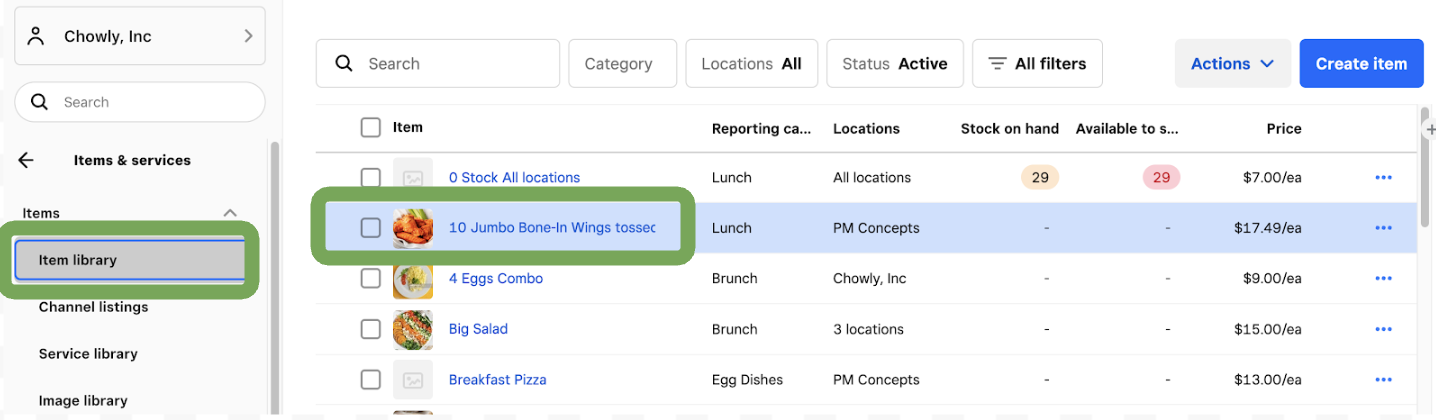
From the Square Dashboard homepage, click the Items & Services button from the left side navigation bar.
-
On the Item Library page, click the Items button from the left side navigation bar.
-
On the Items page, click whichever item has the modifier set you'd like to edit, and scroll to Modifiers.
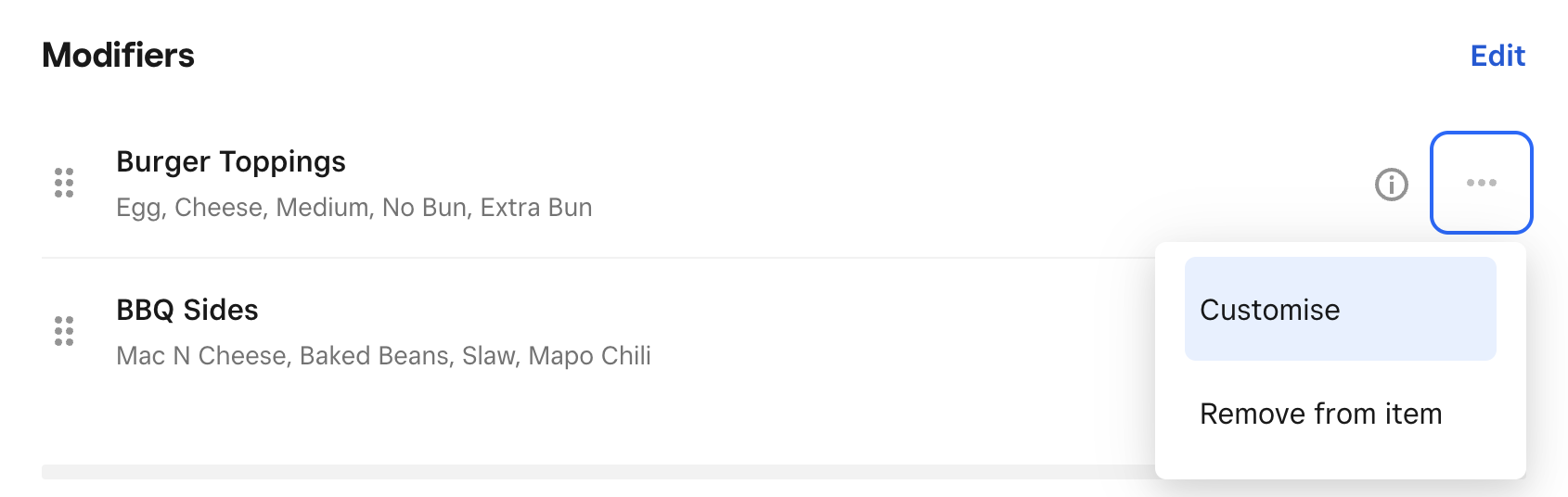
Click the 3 dots next to the modifier group and select Customize.
An Edit Modifier Set page will pop up. Scroll down to Selection Rules:
- Toggle Allow more than one modifier to be selected on to choose the amount of modifiers available to order at a time. Place the needed minimum or maximum selection for the modifier set.
- Toggle Require a selection on to pull up the make the modifiers group required.
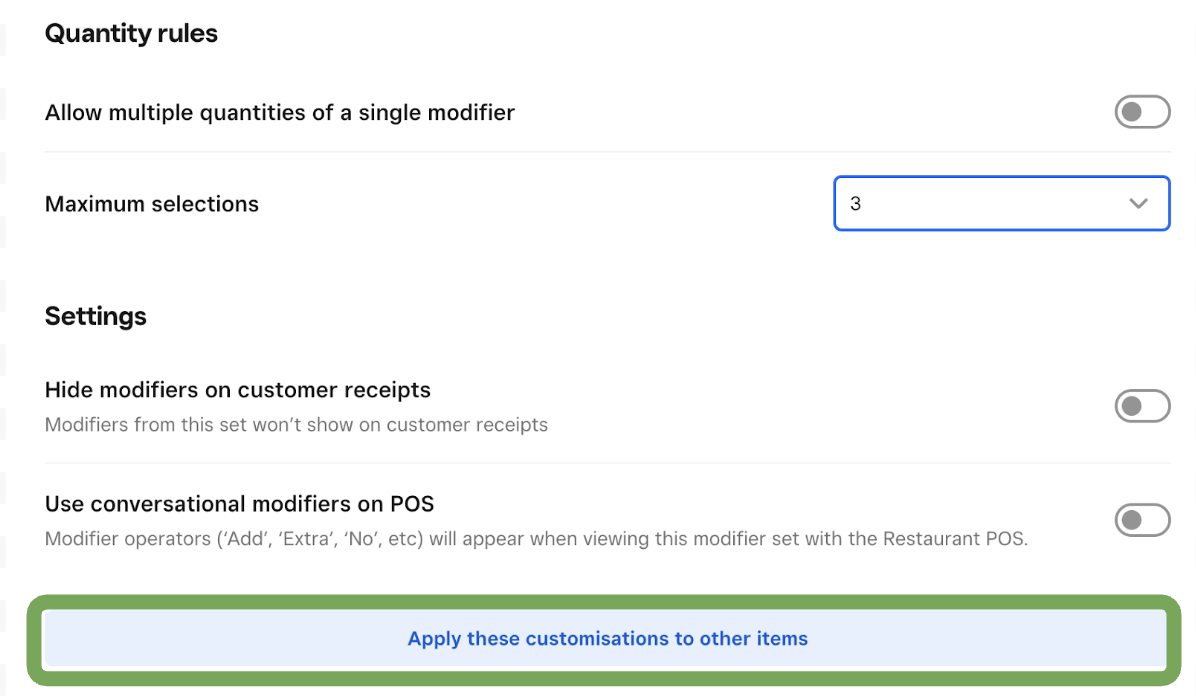
- Allow multiple quantities of a single modifier is not currently supported on the Chowly Integration
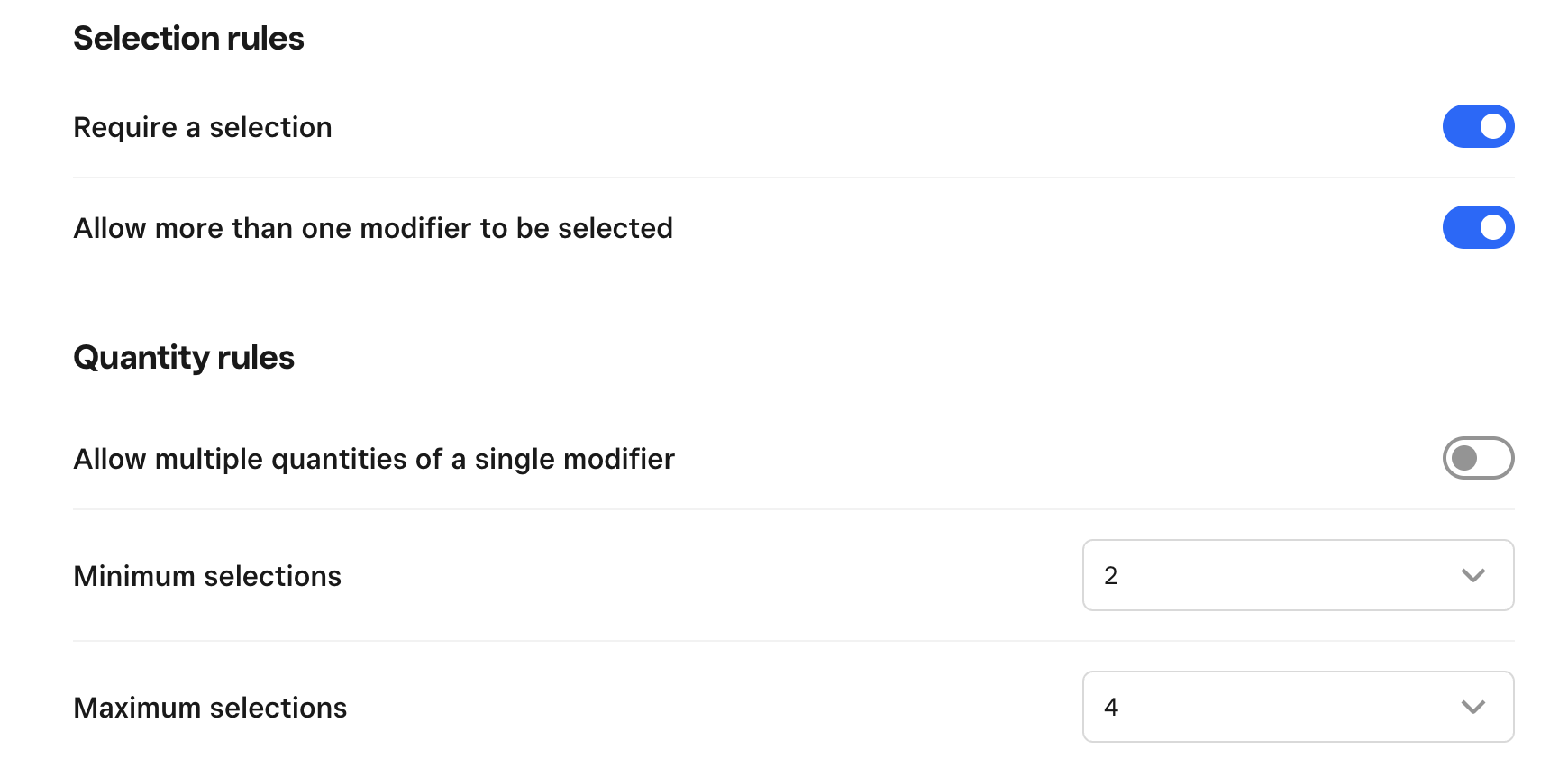
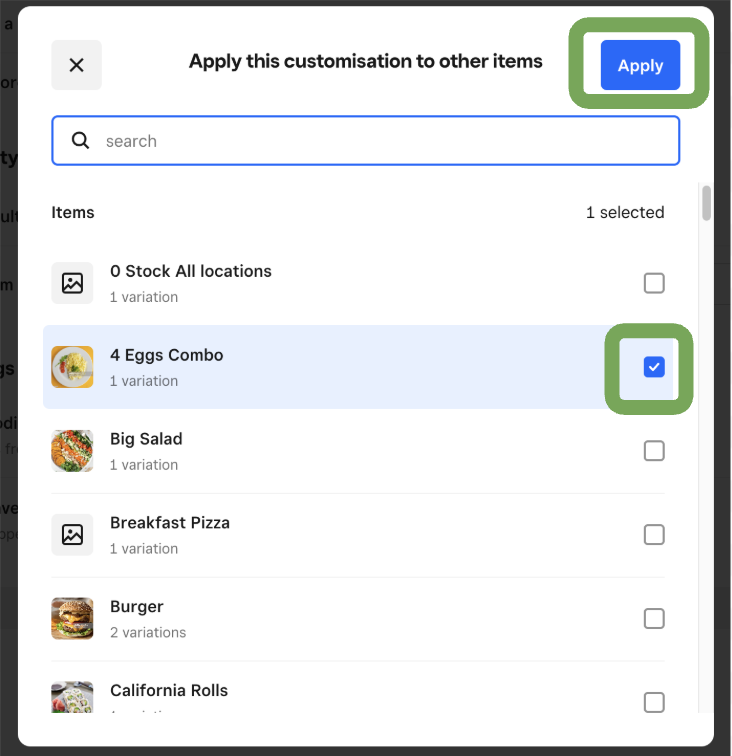
At the bottom of the page, select Apply this customisation to other items. Checkmark all items the modifier settings should apply to. Click Apply.
Click Save at the top of the modifier popup page, and save the menu item.
Pull up your location in the RCC (Chowly.app) and click Resync.