Creating a Restaurant Control Center Account
This article explains how to sign up for a Restaurant Control Center account if you do not have one.
Signing Up for a Restaurant Control Center Account
To sign up for access to Chowly's Restaurant Control Center, you must reach out to our Support Team. Contact us by clicking the Chowly Support icon (yellow circle with a blue C) at the bottom right corner of this screen.
Once you have contacted the Support Team, the next steps will look like this:
A Support Team member will ask you for the email address(es) of whoever would like access to your Restaurant Control Center. You can give more than one email address access if you'd like to have multiple accounts able to use your control center.
If you have multiple locations, you will need to have the names of them ready. Our Support Team will need to know this information to give you access to all that the Restaurant Control Center has to offer.
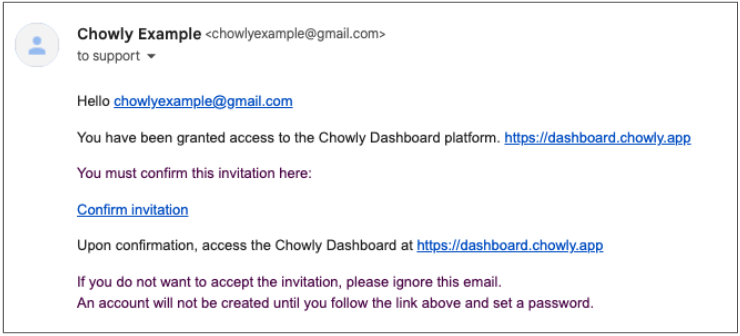
You will receive an email from [email protected] that looks like the image above. Click the "Confirm invitation" link. Upon confirmation, you will now be able to access your Restaurant Control Center account.